Dragon Drop - A Visual Basic Software Consultancy
Word Code
Navigating Between Comments
We were asked to write a small tool for someone who wanted to be able to see each user's comments within a Word document and to be able to navigate between the comments. This code, which resides in a start-up Word template, is a more friendly version of the F5 'go to...' function within Word. More importantly, with a little more work we can expand on this tool to manage the comments.
In the current version the user can click on the icon in the toolbar and if a document is present and it has comments then a dialog box appears:
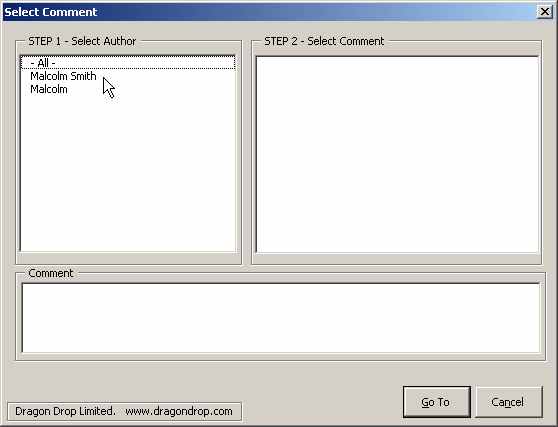
The user is able to select which author's comments to view; or to view all of the comments within the document.
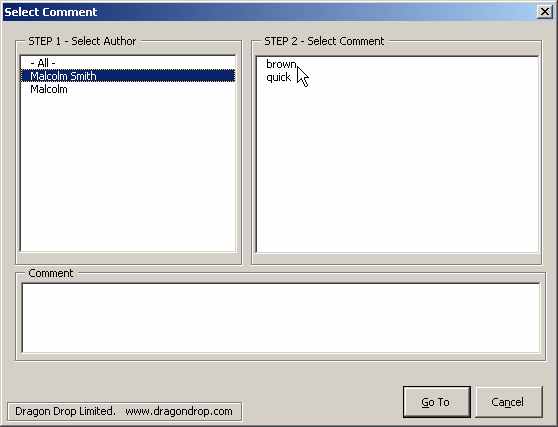
Having selected an author the list of his or her comments are listed in the right hand control.
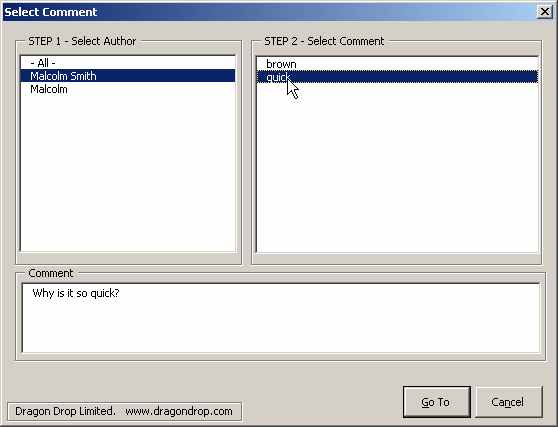
Selecting a comment will do two things. First it will put the actual commment text into the bottom control of the dialog box and, second, the comment within the document will be selected. Therefore, if the user clicks on the 'Go To' button then that comment will remain selected. Clicking on the 'Cancel' button will cause the user's selection to return to where he or she was before this dialog box was brought up.
The code comes in two classes; the modComments code module and the form itself, which is frmSelectComment
The code for the module modComments:
Option Explicit

  Public Const ALL_AUTHORS As String = "- All -"
'


Public Sub GoToComment()

  Dim oFrm As frmSelectComment

  On Error GoTo Error_GotoComment


  If Documents.Count > 0 Then

    If ActiveDocument.Comments.Count = 0 Then
      MsgBox "There are no comments are in the current Active Document.", _
          vbOKOnly + vbExclamation, "Dragon Drop Comments"
    Else

      ActiveDocument.Bookmarks.Add "DragonDropOriginalPosition", Selection.Range

      Set oFrm = New frmSelectComment
      oFrm.Tag = "Cancel"

      oFrm.Show
      '--------

      If oFrm.Tag = "Cancel" Then
        ActiveDocument.Bookmarks("DragonDropOriginalPosition").Range.Select
      End If
      ActiveDocument.Bookmarks("DragonDropOriginalPosition").Delete

      Unload oFrm
      Set oFrm = Nothing

    End If

  End If


Exit_GoToComment:

  Exit Sub


Error_GotoComment:

  On Error Resume Next

  If ActiveDocument.Bookmarks.Exists("DragonDropOriginalPosition") Then
    ActiveDocument.Bookmarks("DragonDropOriginalPosition").Range.Select
  End If
  ActiveDocument.Bookmarks("DragonDropOriginalPosition").Delete

  Resume Exit_GoToComment

End Sub
The entry point for the code is the public subroutine, GoToComment(), above. This is what is called from the button on the toolbar.
The code for the form frmSelectComment:
Option Explicit
'

Private Sub cmdCancel_Click()

  Me.Tag = "Cancel"
  Me.Hide

End Sub


Private Sub cmdGoTo_Click()

  Me.Tag = "OK"
  Me.Hide

End Sub

Private Sub UserForm_Initialize()

  Dim oComment As Comment
  Dim sAuthor As String


  Me.lstAuthors.AddItem ALL_AUTHORS
  For Each oComment In ActiveDocument.Comments
    sAuthor = Trim$(oComment.Author)
    If Len(sAuthor) > 0 Then
      If Not IsAuthorListed(sAuthor) Then
        Me.lstAuthors.AddItem sAuthor
      End If
    End If
  Next oComment

End Sub


Private Function IsAuthorListed(sAuthor As String) As Boolean

  Dim nIndex As Long
  Dim bIsFound As Boolean


  bIsFound = False
  nIndex = 0

  Do While nIndex < Me.lstAuthors.ListCount
    If Me.lstAuthors.List(nIndex) = sAuthor Then
      bIsFound = True
      Exit Do
    End If
    nIndex = nIndex + 1
  Loop

  IsAuthorListed = bIsFound

End Function


Private Sub lstAuthors_Click()

  Dim nIndex As Long
  Dim sAuthor As String
  Dim oComment As Comment


  Me.lstComments.Clear
  Me.txtComment.Text = ""

  nIndex = Me.lstAuthors.ListIndex
  If nIndex >= 0 Then
    sAuthor = Me.lstAuthors.Text
    For Each oComment In ActiveDocument.Comments
      If oComment.Author = sAuthor Or sAuthor = ALL_AUTHORS Then
        Me.lstComments.AddItem oComment.Index
        Me.lstComments.List(Me.lstComments.ListCount - 1, 1) = oComment.Scope.Text
      End If
    Next oComment
  End If

End Sub


Private Sub lstComments_Click()

  Dim nCommentIndex As Long
  Dim nIndex As Long

  nIndex = Me.lstComments.ListIndex
  If nIndex >= 0 Then
    nCommentIndex = Val(Me.lstComments.List(nIndex, 0))

    If nCommentIndex > 0 Then
      Me.txtComment.Text = ActiveDocument.Comments(nCommentIndex).Range.Text
      ActiveDocument.Comments(nCommentIndex).Scope.Select
    End If
  End If

End Sub
This code is rather straightforward. When the GoToComment() routine is entered the first thing that happens is that the number of open documents are counted. If there are no documents open then nothing happens as the first If...Then statement fails.
The next check is to see if there are any comments within the current active document. This is done by counting the number of .Comments in the ActiveDocument. If there are no comments then the user is informed of this by a message box and then the processing stops.
The next thing that happens is that a bookmark is created in the document at the current selection position and range. This is so that the user can return to this point if he or she presses the Cancel button on the dialog box.
The next thing is that the dialog box is created and before the dialog box is displayed the .Tag property of the dialog box is set to "Cancel". The reason that this is done this way is that one way of processing the result of the button presses on the form is within the form itself or it can be done, as in this example, in the calling routine. The advantage of doing it this way is that if the user cancels the form via the 'x' control then we still have the return value of "Cancel" and we can continue clearing up any objects in exactly the same way as if the the form was left in the expected way.
The dialog box is then shown; the processing is done on the form until the form is closed. After the form is closed the form object is destroyed and the pointer to it reset. If the user didn't exit the form by going pressing the 'Go To' button then the range of the our bookmark is reselected and destroyed thus clearing everything up and leaving no sign that this code was ever executed.
So, what happens when the form is created and until it is destroyed?
The first thing is that it does is on initialising the form the string "- ALL -" is added to the lstAuthors list control and then each comment in the active document is accessed to locate each of the names of the authors of the comment; this is done by looking at the .Author property.
This is the then the situation that the user first sees after he or she has clicked on the toolbar button. The list of comment authors are in the left hand control and the dialog box is ready for user operation.
When the user clicks on an author's name the collection of comments is traversed once more and each comment by that author is placed into the right hand control. What one can see in this control is the actual text used in the main document which is commented.
Actually, the code does a little more than this; the right hand control, lstCommments, actually has two columns. The first column of the lstComments control is zero width and it is into here that the index value of the comment is placed. In the second column, the visible column, is the document commented text.
The reason for this is that each item in the .Comments collection has an index. To save further travelling through the comments each time the user selects a comment in the lstComments window the index value is gathered and the acutal comment can be directly accessed from the collection.
When the comment is selected in the lstComments window the range of the text of the comment, i.e. the comment notes, are placed into the control at the bottom and then, finally, the scope of the comment on the document is selected so it seems like the user has 'gone to the comment' by selecting it in the dialog box.
There is nothing really difficult about this code item but that doesn't mean to say that it isn't useful. Of course there will be futher enhancements to it in the future so that full comment control can be given to the user.
This code can be downloaded from here and placed into Word's start-up folder.
Updates or Comments
If there are any suggestions for updates or comments then please drop us a mail at [email protected].