Dragon Drop - A Visual Basic Software Consultancy
Word Code / Best Practices
How To Create A Simple Template With A User Form
Step Six
In this step we add a form class to the template project.
Right-click on the template in the project tree window and click on 'Insert' and then select 'User Form'
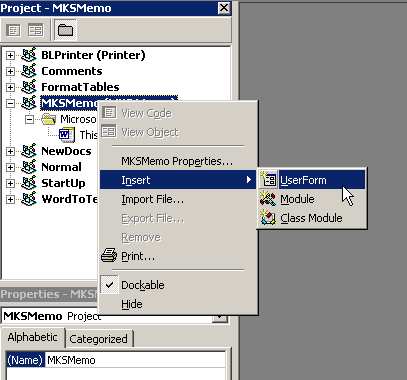
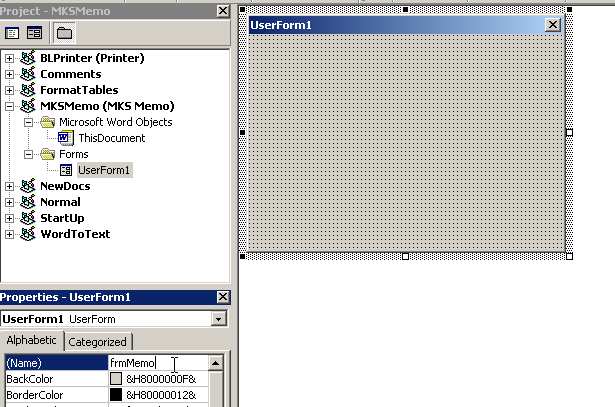
What has happened now is that a User Form class has been added to the Template project. In the project tree window one can now see that a User Form, which has been given the default name of 'UserForm1', has been created. Also in the editor part of the IDE a form has appeared in edit mode. It is now the task to edit this form to suit the requirement of the template.
Before doing anything else, the name of the UserForm1 class should be changed to something more appropriate. We suggest changing it to 'frmMemo'. The 'frm' prefix is often used to indicate a form class.
| << Back | Next >> |
Updates or Comments
If there are any suggestions for updates or comments then please drop us a mail at [email protected].