Dragon Drop - A Visual Basic Software Consultancy
Word Code / Best Practices
How To Create A Simple Template With A User Form
Step Five
In the Project Tree window (by default in the top left corner) select the project labelled 'Project Template'. THe fact that the template will have already has been saved means the name of the template ought to be in brackets. This ensures that the correct template project is going to worked on.
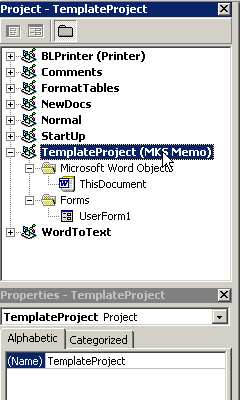
Underneath the Project tree, again by default, is the Properties window. Here this window is a list of all of the properties of the selected object. As shown in the above picture there is only property of the template and that is the name.
The template project name is going to replaced with 'MKSMemo' because, as we mentioned before, all objects and variables ought to be named properly.
| << Back | Next >> |
Updates or Comments
If there are any suggestions for updates or comments then please drop us a mail at [email protected].